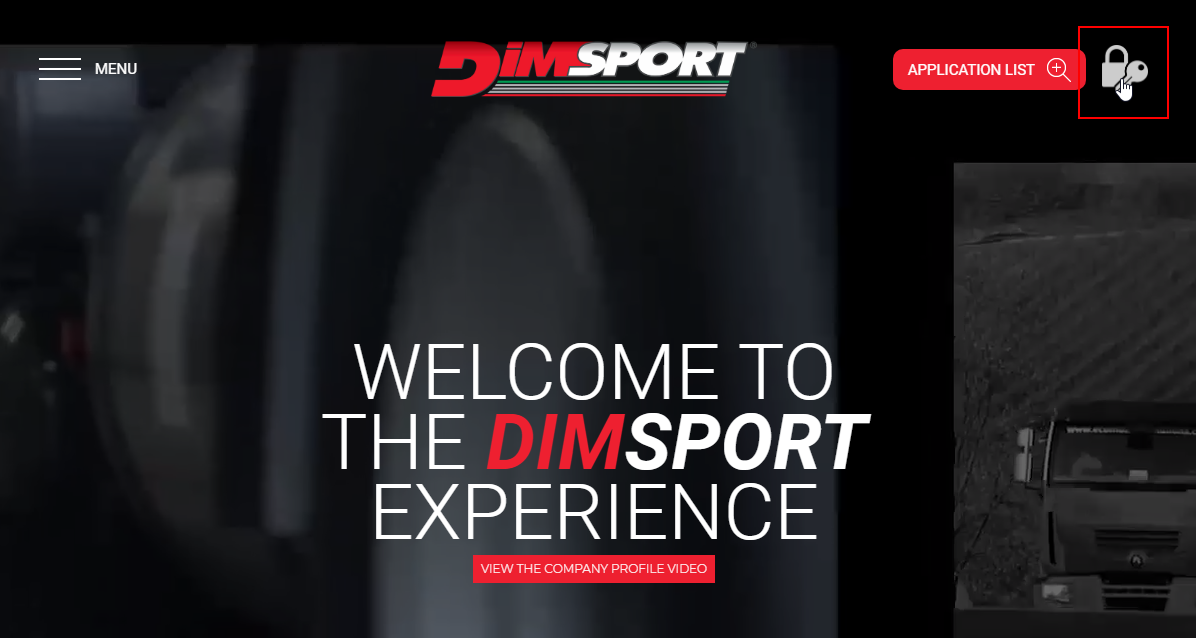
1. Go to Dimsport website at www.dimsport.com and click on the padlock icon in the top right-hand corner.
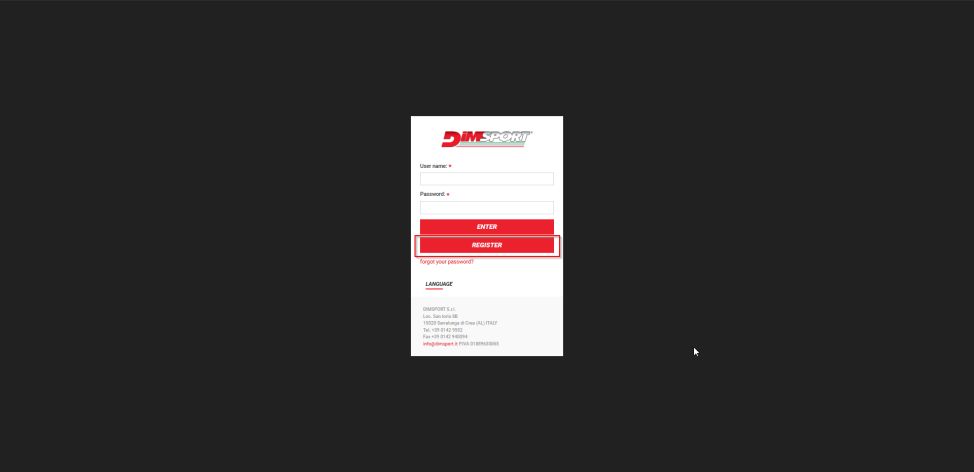
2. Click on the "Register" button to start a new registration.
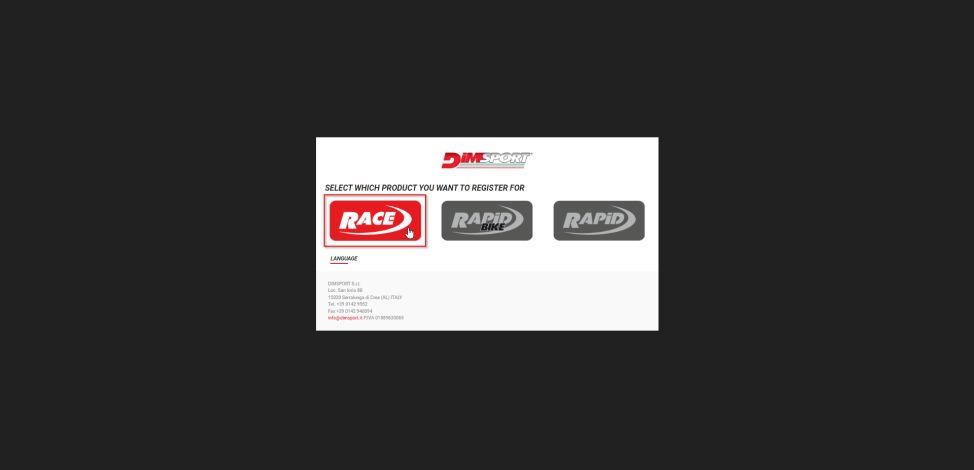
3. Select the product you want to register.
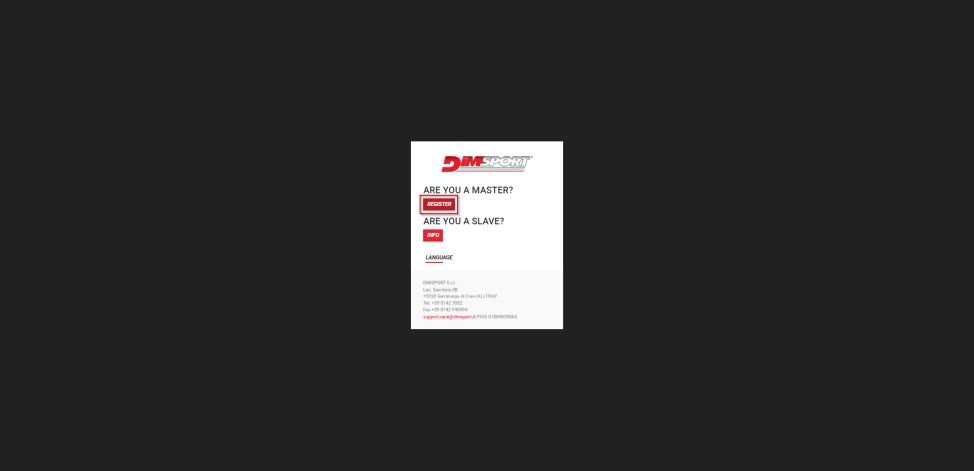
4.Choose if you are a Customer Master or a Slave(if you are a slave follow this link Sign up at www.dimsport.com to access the Flash Point reserved area.)
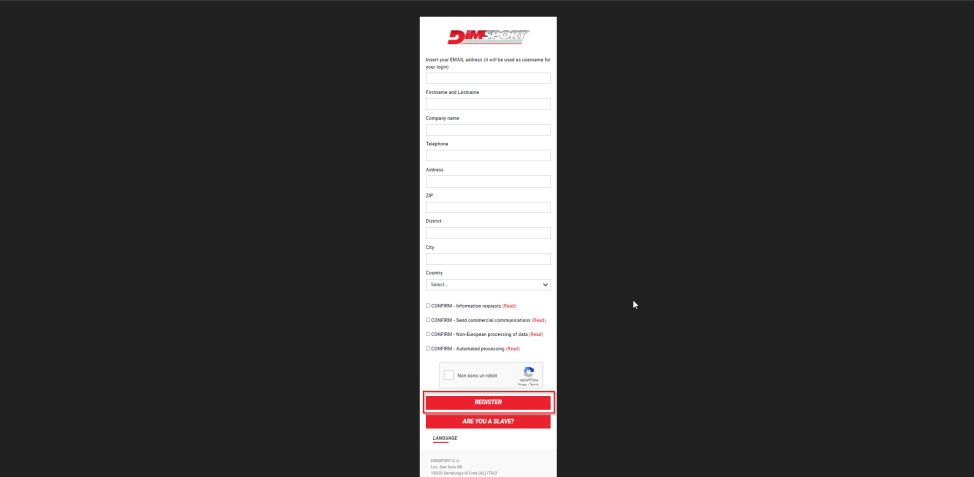
5. Carefully complete each field of the registration form, give your consent for privacy, commercial, promotional information and click on the "Register" button.
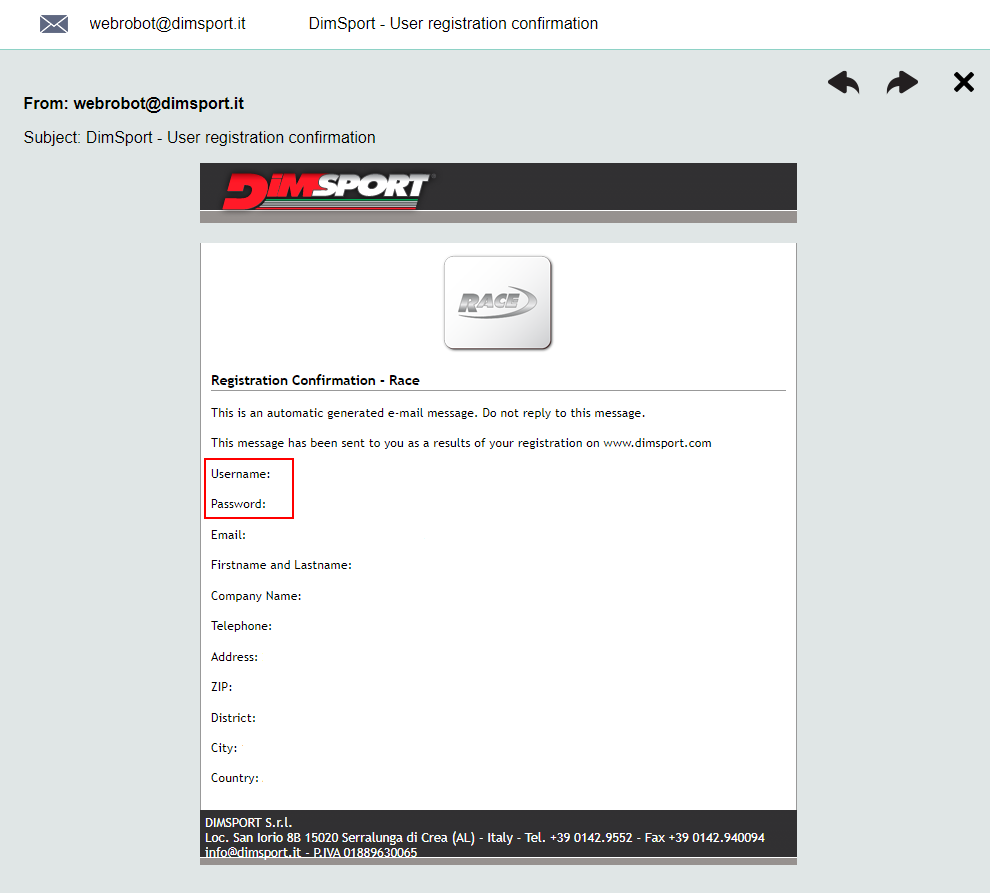
6. Once you have completed your registration, consult your email box to get username and password required for the login.
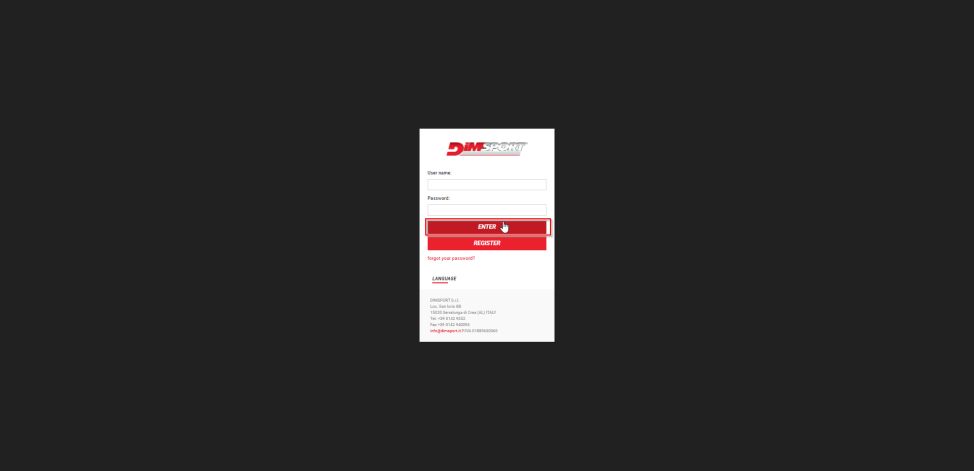
7. Return to the login page of the reserved area (http://reserved.dimsport.com/login.aspx) and enter your username and password.
8. After logging in, you will see the home page of your account.
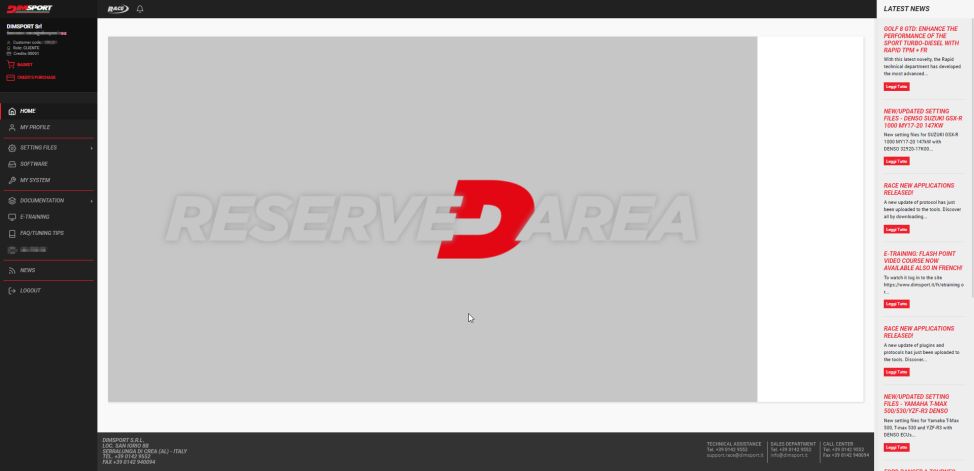
N.B. The type of user you have just created is called "Guest". The Guest user can ONLY access to his own personal data, application list, and news.
In order to make your account working, so that you can see your contracts, devices, etc., you need to contact the Dimsport sales department at info@dimsport.it providing your personal details and username of the account created.
8. The main page will look like this after activating your account:
LEFT MENU'
Upside
- Your registration mail
- Customer code
- Total amount of your credits
- CART: shopping cart containing selected setting files waiting to be downloaded.
- BUY CREDITS: area where you can purchase credits to buy setting files
- MY PROFILE - personal data of the customer
- SETTING FILES: list of all already downloaded setting files
- SOFTWARE: area where to download all the setups to install the software
- MY SYSTEM: area where you can view the status of your system: serial numbers of your tools, contracts status, etc.
- DOCUMENTATION: area where to download manuals ad see the application list
- E-TRAINING: online video courses for all Dimsport software and devices.
- FAQ/TUNING TIPS: help Desk site where you can consult guides to solve problems with reading/writing ECUs, software, tuning tips etc.
- NEWS: latest news about Dimsport products
- LOGOUT: log out the "Reserved Area"
RIGHT SIDE
- NEWS: latest news about Dimsport products