| Below the instructions to perform a Brand change request of the MyGenius tool with the original file written back on the vehicle from MyGenius Client: |
| | MYGENIUS CLIENT | | MYGENIUS CLIENT V2 |
| | MYGENIUS CLIENT: |
| | The starting condition is: vehicle successfully reflashed with the MOD file. |
| If the Client wants to use his My Genius on a different vehicle, he must first reflash the vehicle with the stock file and then perform the action Brand Change Request.
|
| This procedure does not depend on the Brand the unit will be reconfigured for.
|
| Here below are explained the steps to follow for My Genius client.
|
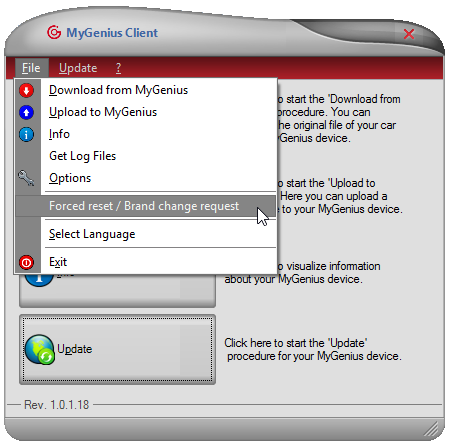
| | 1. Perform a "Brand change request" with My Genius device plugged to the PC and click on "Yes" to confirm. |
|  |
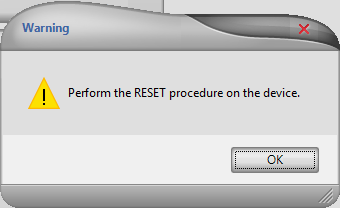
| 2. You will get out this message.
|
|
 |
|
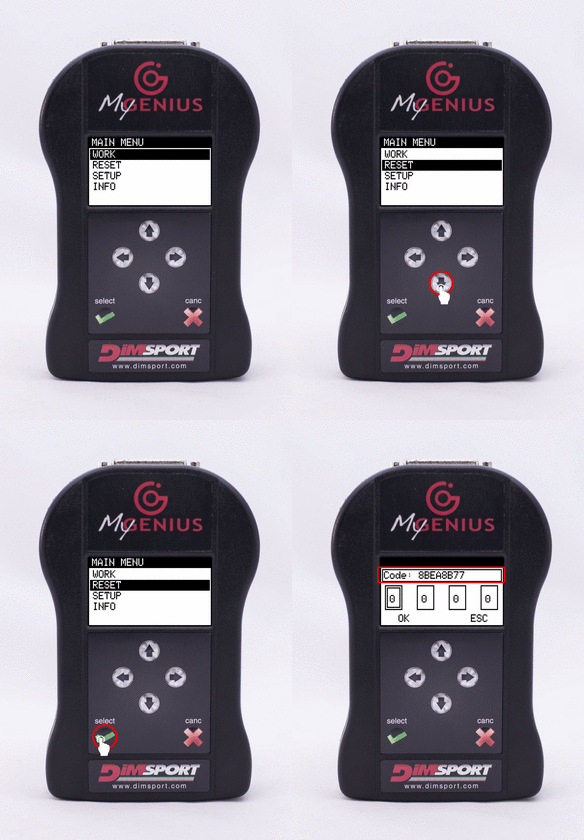
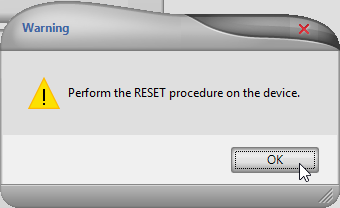
| 3. DON'T click on "OK". You have to perform a reset of the device first. |
|
|
4. A code will appear on the screen of the device. This code must be communicated to the Manager.
|
| 
|
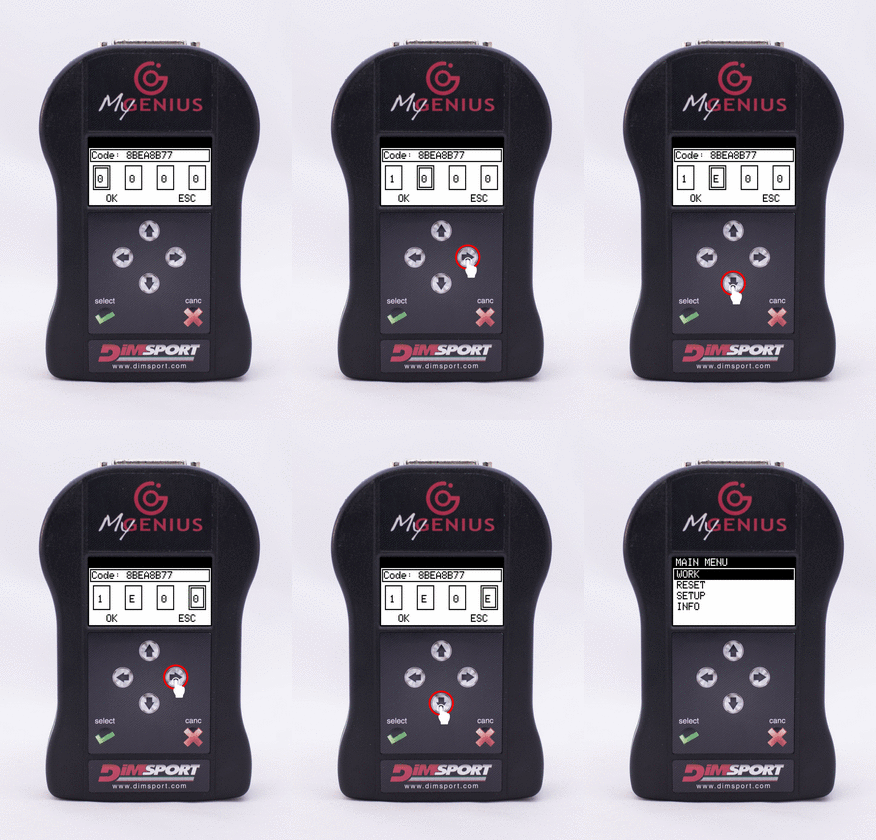
| | 5. The manager will communicate you the unlock counter-code. |
| | 6. Enter the unlock counter-code on the unit. |
|  |
|
7. ONLY AFTER you have finished reset, click on "OK". |
|  |
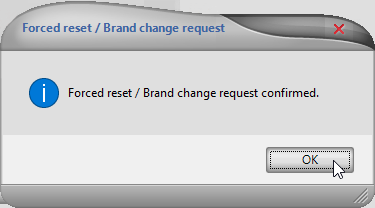
| | 8. Then it will appear this message if the request was successful. |
|  |
| 9. As soon as the request is confirmed, you have to notify the Manager verbally. |
| | 10. The Master will let you know when he's finished taking charge your request. |
| 11. Close and restart the My Genius Client software. |
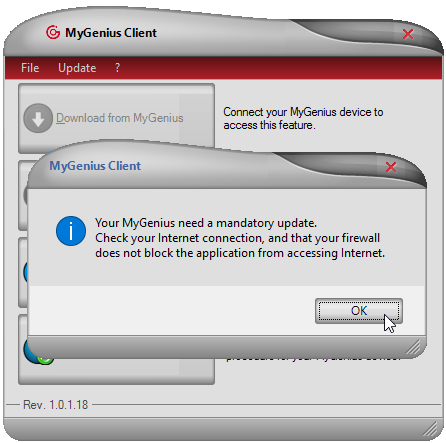
| | 12. At this time you can now perform a complete update of the My Genius client system to get the unit reset and be able to perform the read of the new vehicle. |
|  |
|
| MYGENIUS CLIENT V2: |
|