|
| Below is described the step by-step procedure to perform a correct MYGenius client software installation |
|
|
|
|
Before executing the installation of the software carry out all the pending Windows updates , if not done may be some missing components necessary to MYGenius client software functioning
|
| Below are explained the operations that must be performed on the main operative systems |
|
|
| 1.1.Windows 11 |
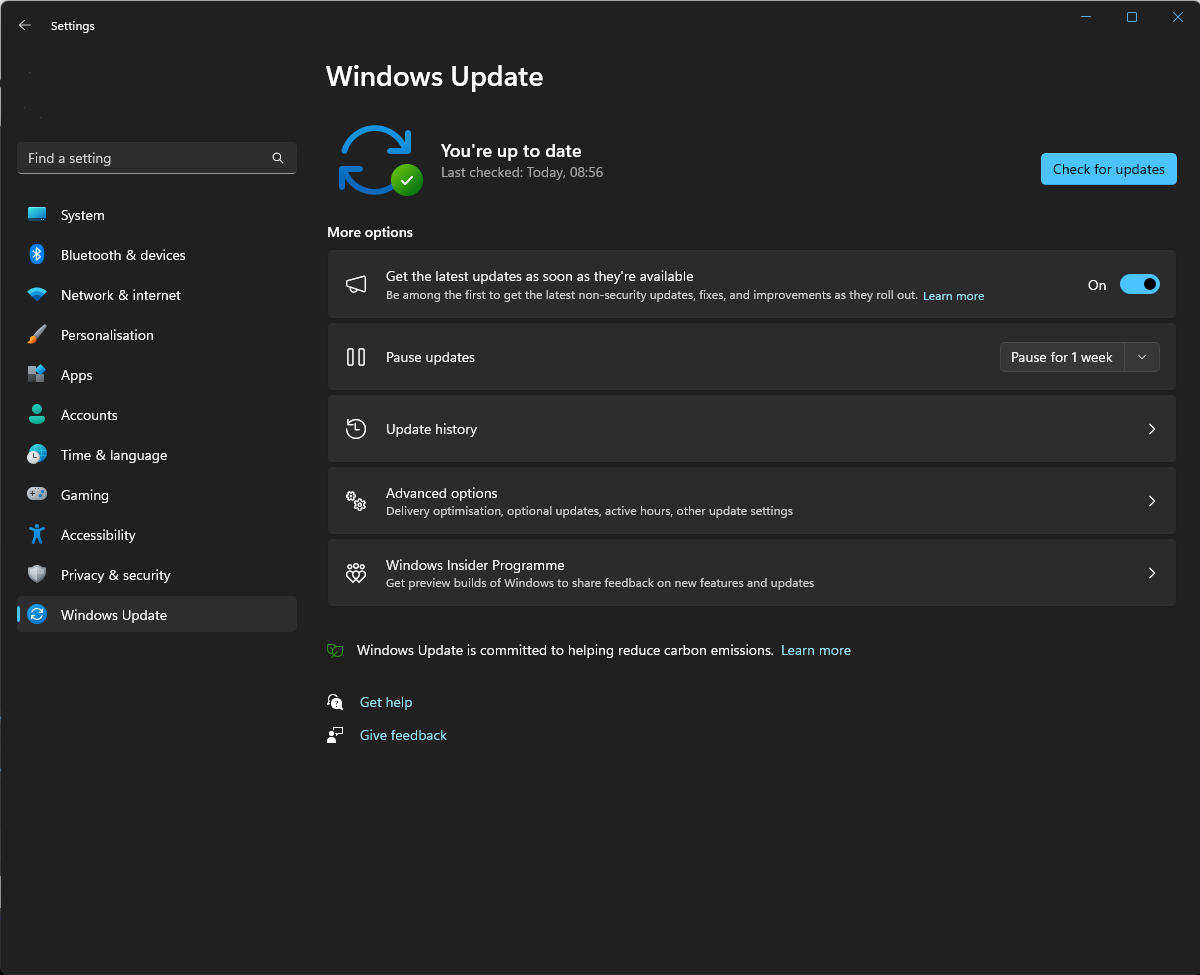
- Click on "Settings"-->"Windows updates"-->"Check for updates"
|
- Download all the available updates and reboot the pc if required
|
 |
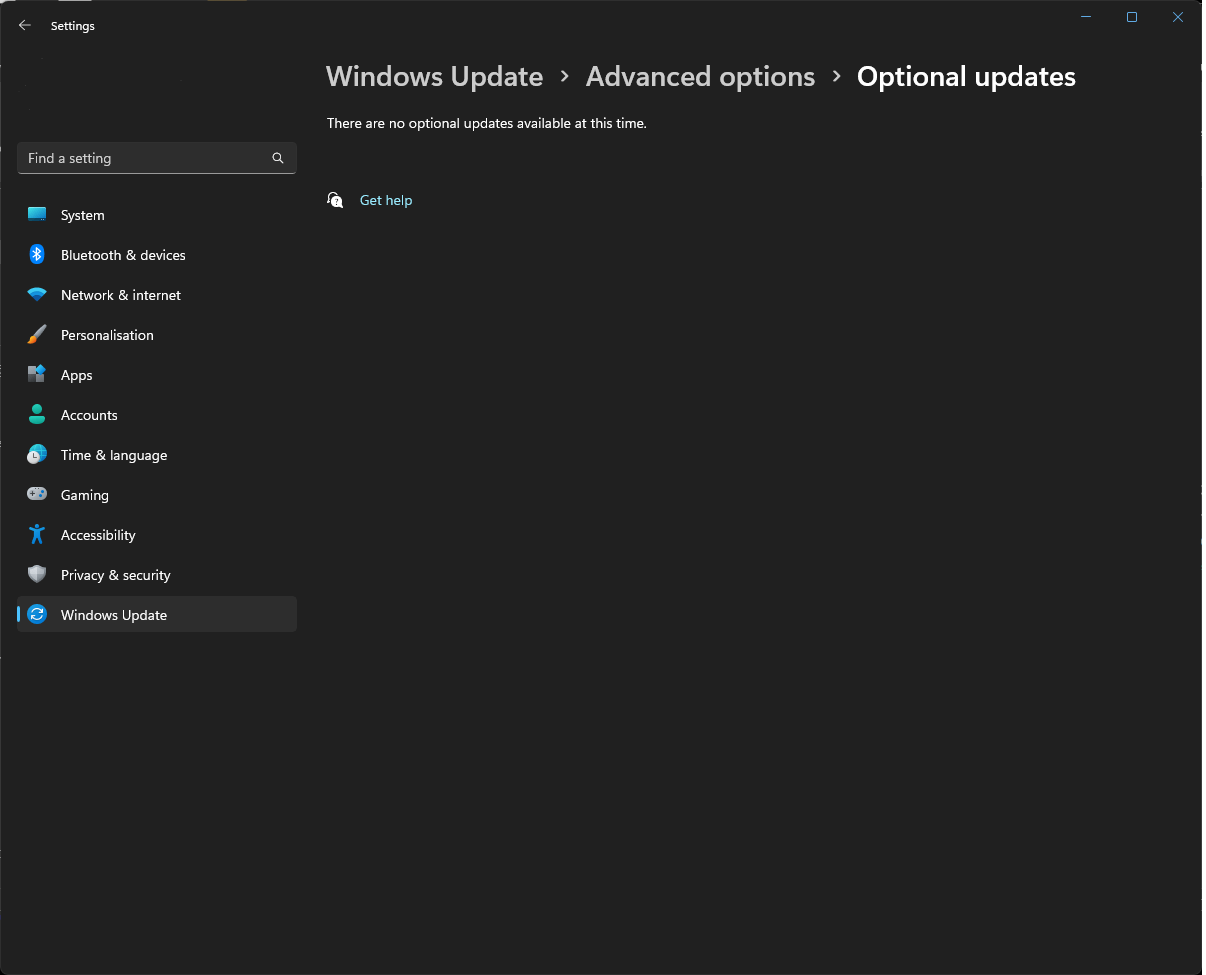
- Navigate to "Settings"-->"Windows update"-->"Advanced Options"-->"Optional updates"
|
- Download all the available updates and reboot the pc if required
|
 |
|
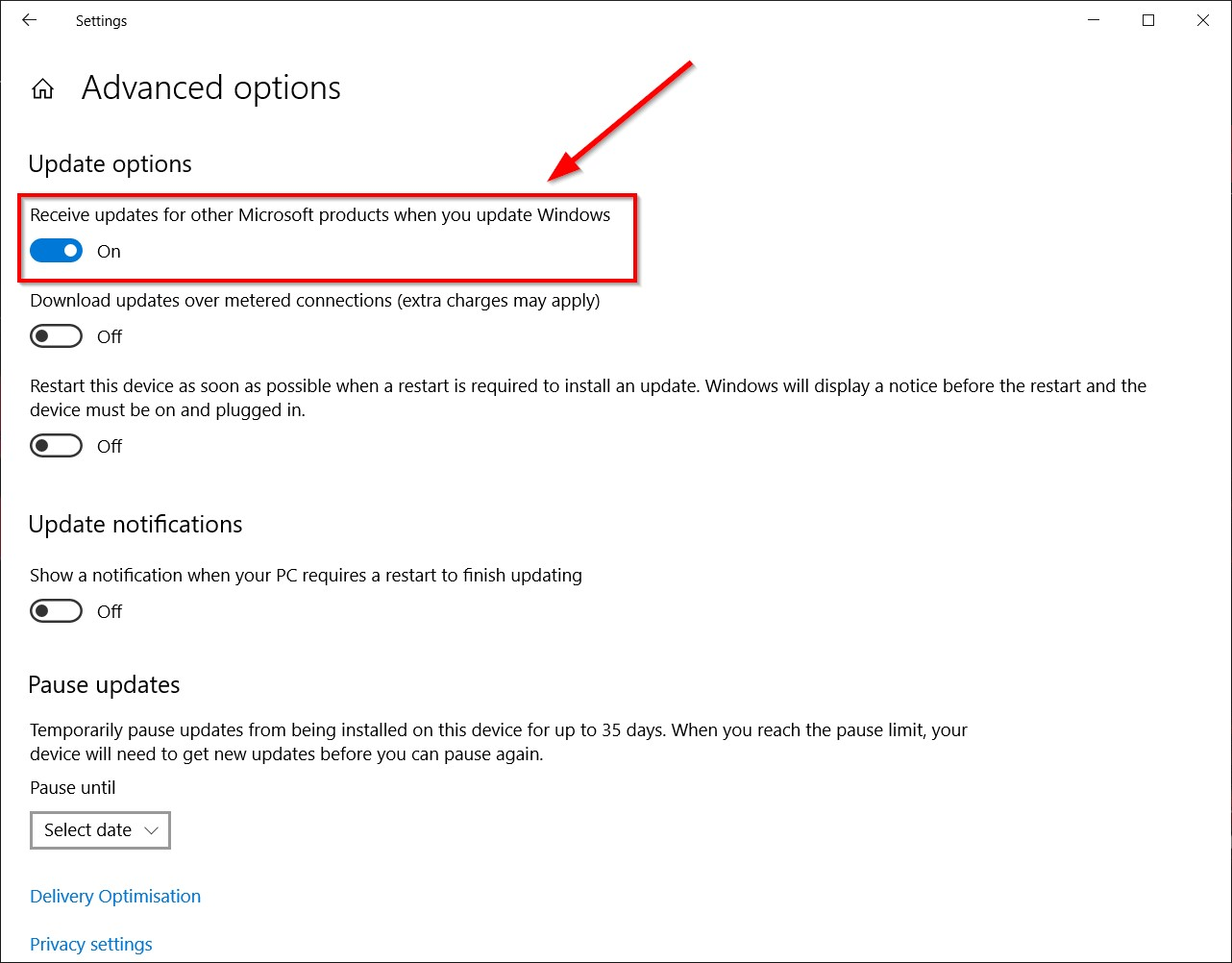
- Click on "Settings"-->"Update&Security"-->"Windows Update"-->"Advanced options"
|
- Enable the option "Receive updates for other Microsoft products when you update windows"
|
 |
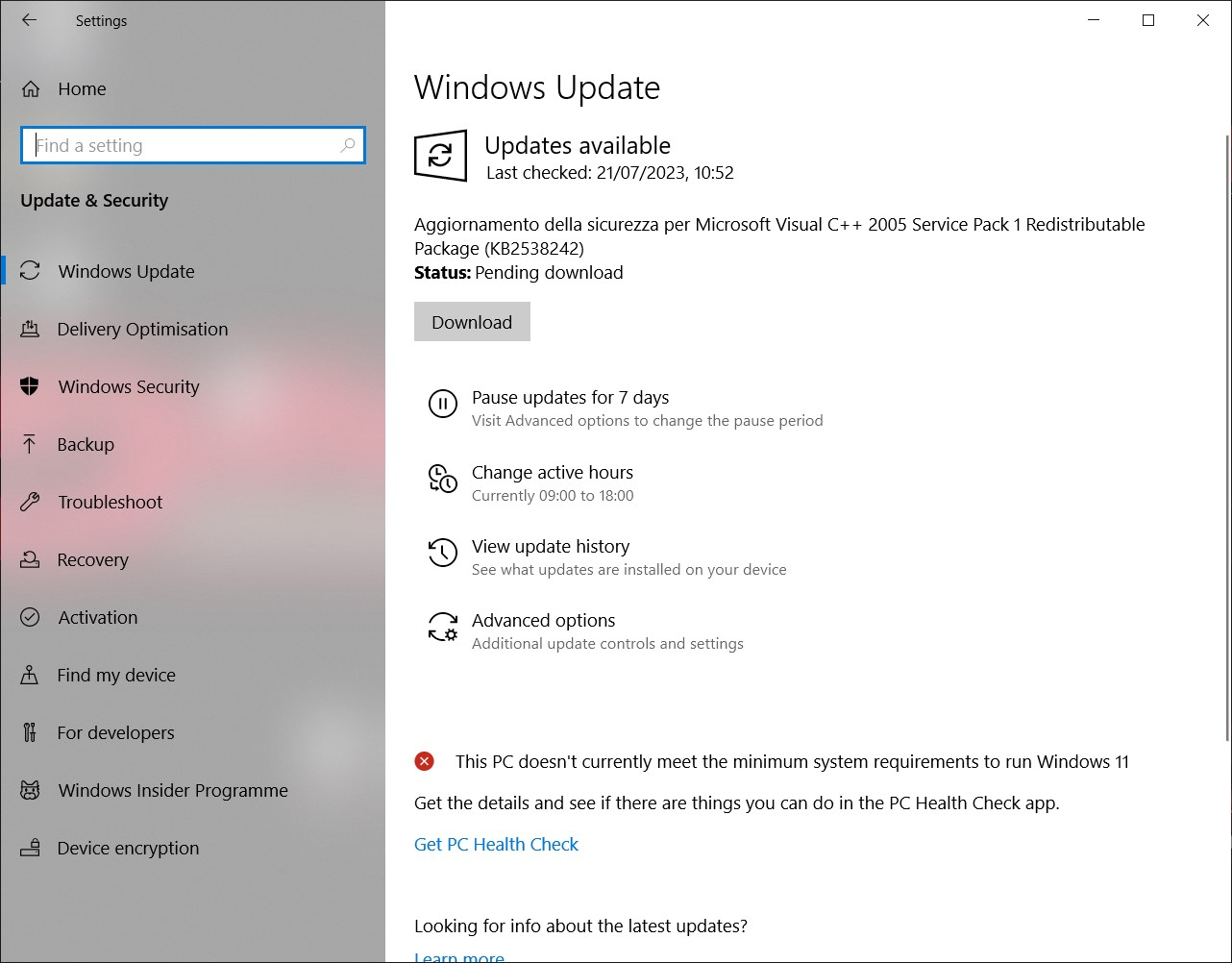
- Click on "Settings"-->"Update&Security"-->"Windows Update"-->"Check for updates"
|
- Download all the available updates and reboot the pc if required
|
 |
|
|
|
| There are two methods for the software download: |
|
|
- Scan with your smartphone the following QR code:
|
 |
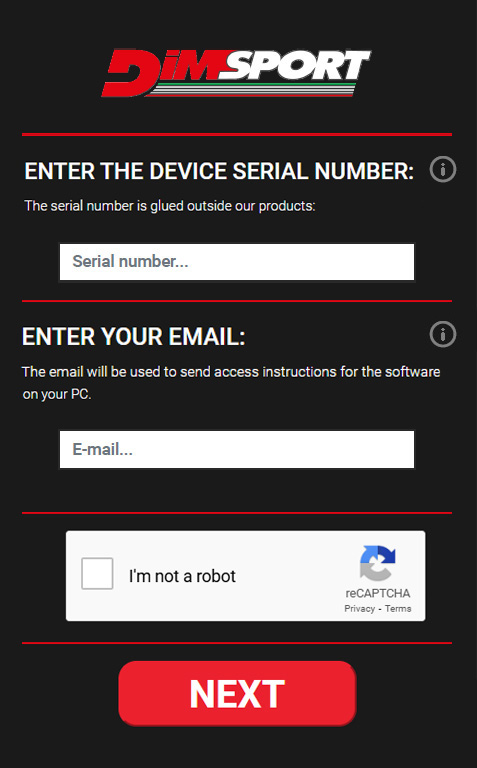
- A webpage will be opened on the Smartphone browser, complete all the requested fields, mark "i'm not a robot" and press "Next".
|
 |
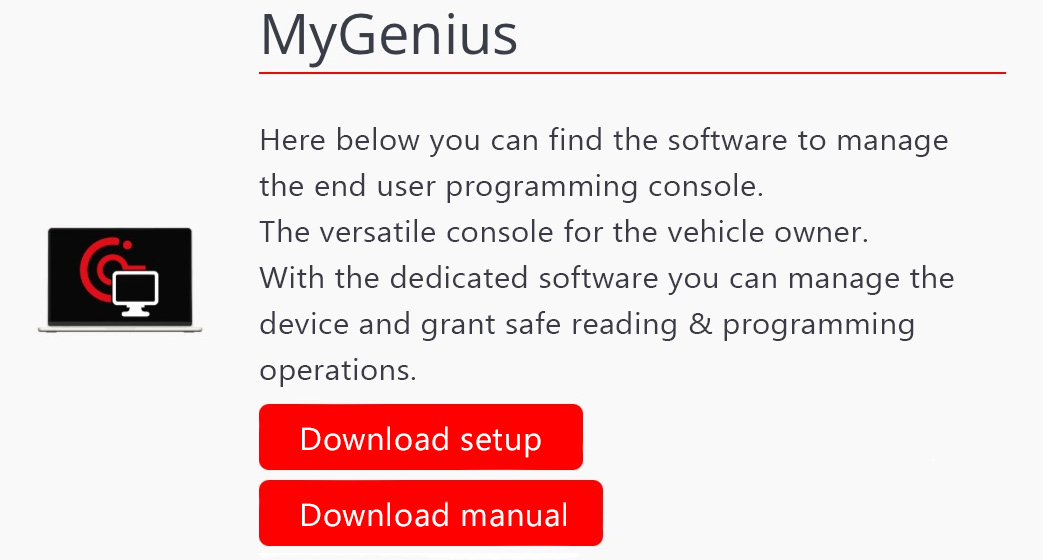
- You'll get a link to download MYGenius client software directly on the desired email.
|
|
|
| Download the software directly using this link |
|
|
- The software will proceed with the installation of all the necessary components and will verify that the pc meets the minimun requirements for its functioning (more details at this link)
|
|
- Execute the mandatory update that will shows up at the end of the installation process
|
|
After this you will be able to fully exploit all the functionalities of MYGenius client
|