|
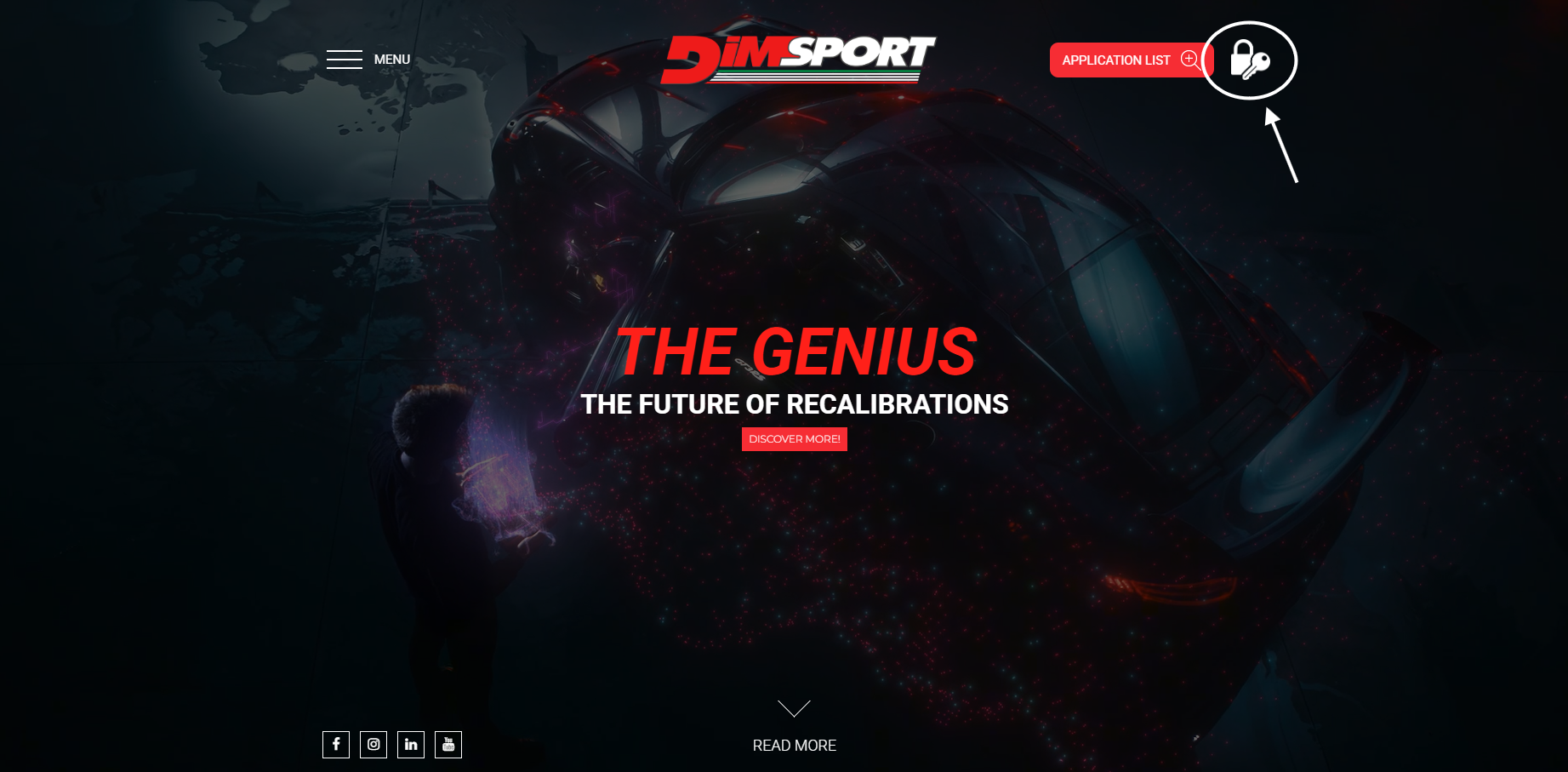
1. Go to the Dimsport website www.dimsport.com and click on the upper right corner padlock icon.
|
|
 |
|
|
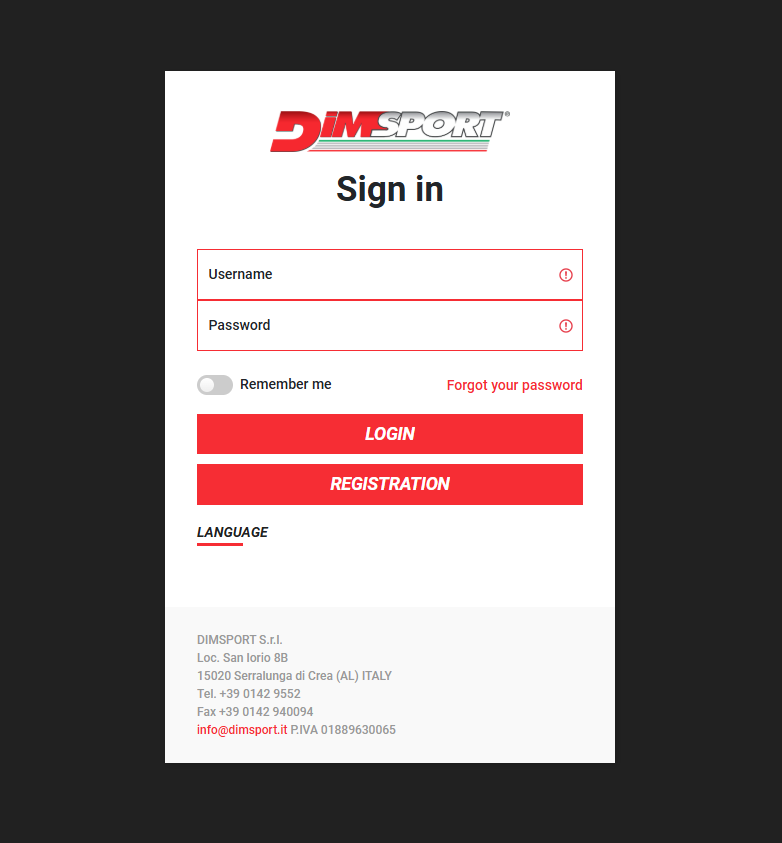
| 2. Fill in Username and Password then click Login to sign in the Reserved Area |
|
 |
|
|
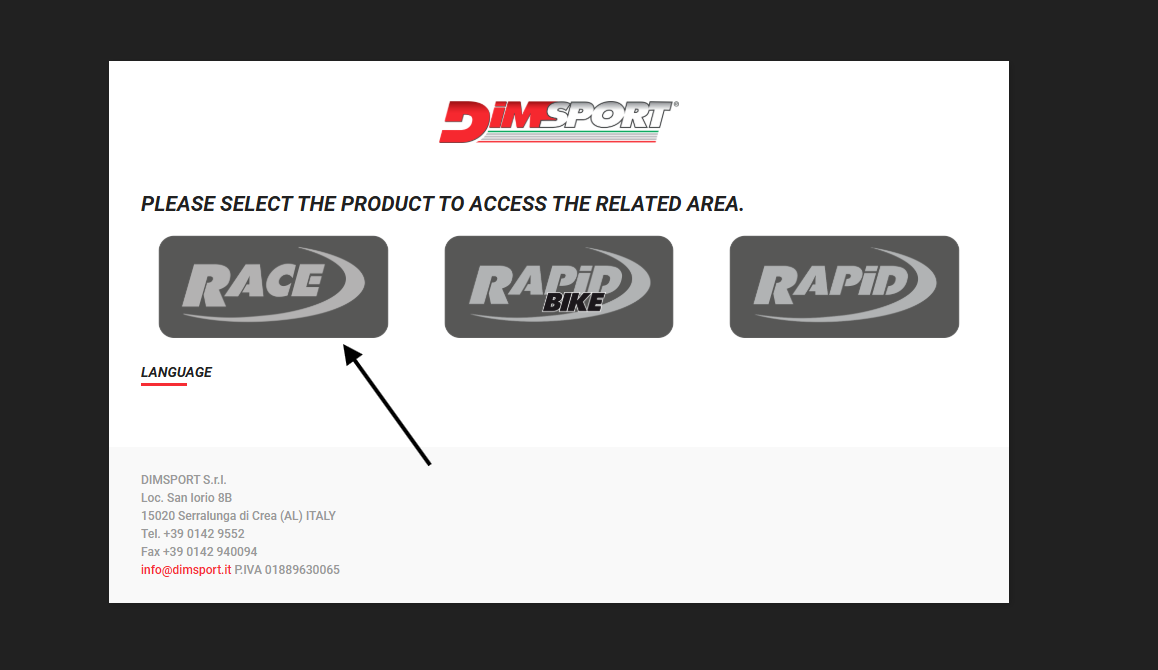
| 2.1 If several product lines are displayed select RACE |
|
 |
|
|
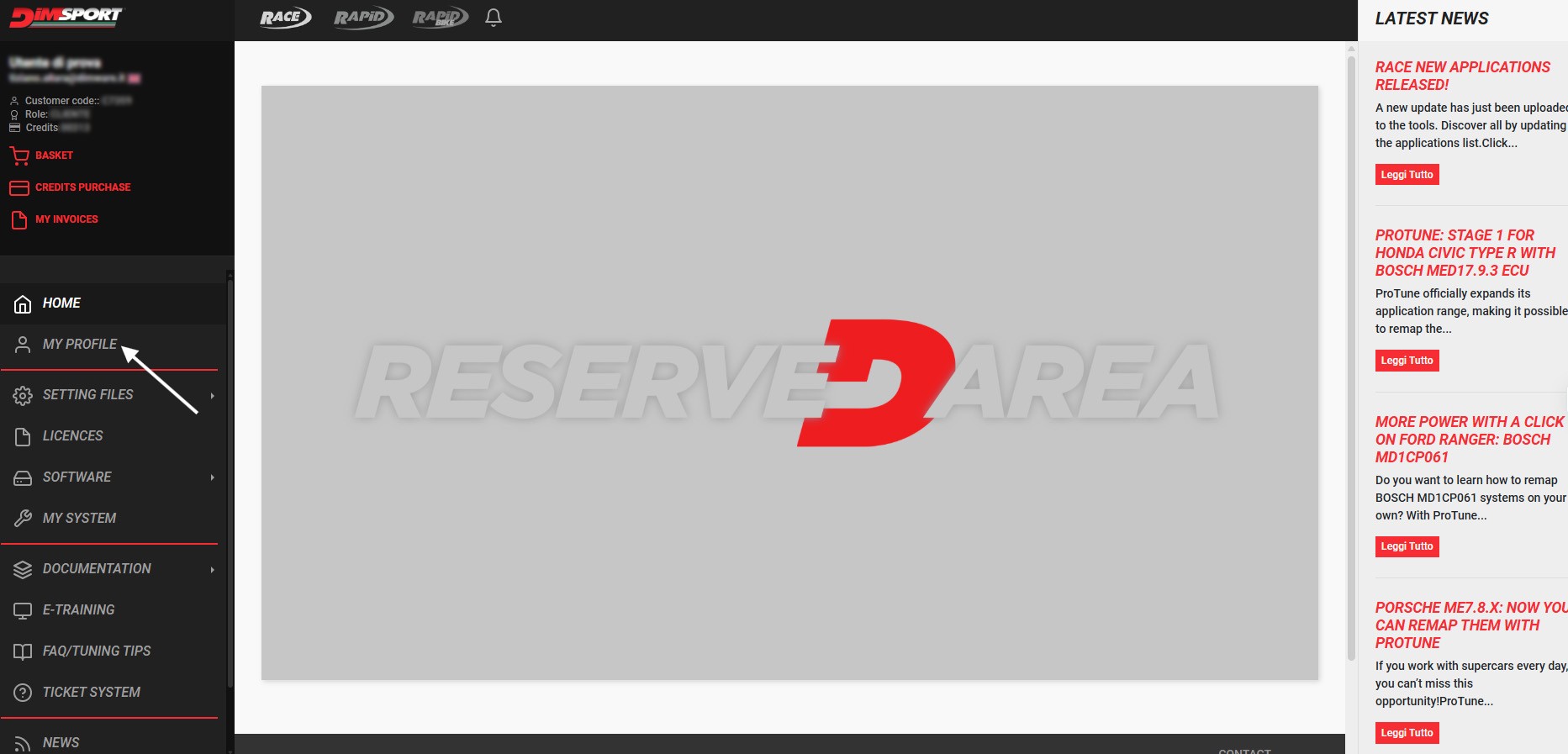
| 3. Click on MY PROFILE tab |
|
 |
|
|
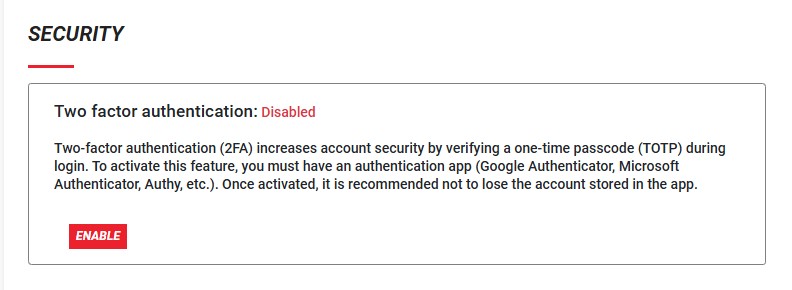
| 4. In SECURITY section press ENABLE |
|
 |
|
|
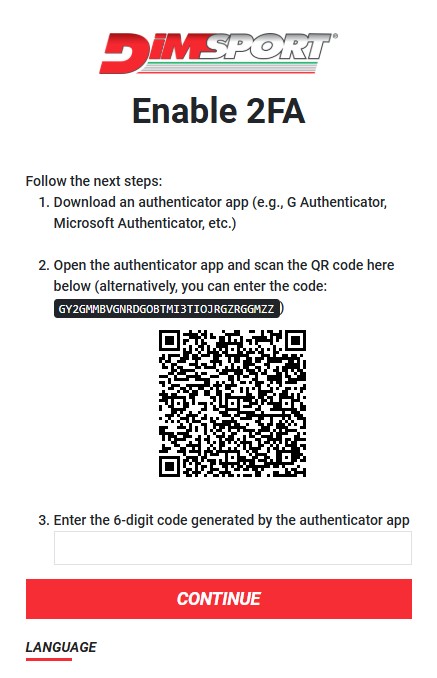
| 5. You will then be logged out from Reserved Area. Log in again and you will find this: |
|  |
|
| 6. Scan the QR code or enter the written code inside your authenticator app.
You are now able to generate the 6-digit code in the app necessary to log in with the two factor authentication (2FA) in the Reserved Area.
Enter the 6-digit code generated by the authenticator app and press CONTINUE
|
|  |
|
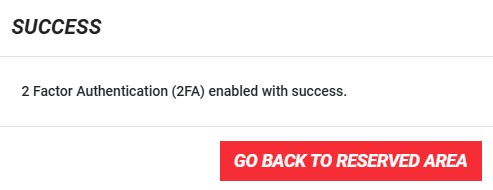
| | 7. The 2 Factor Authentication is now enabled. |
|
|